
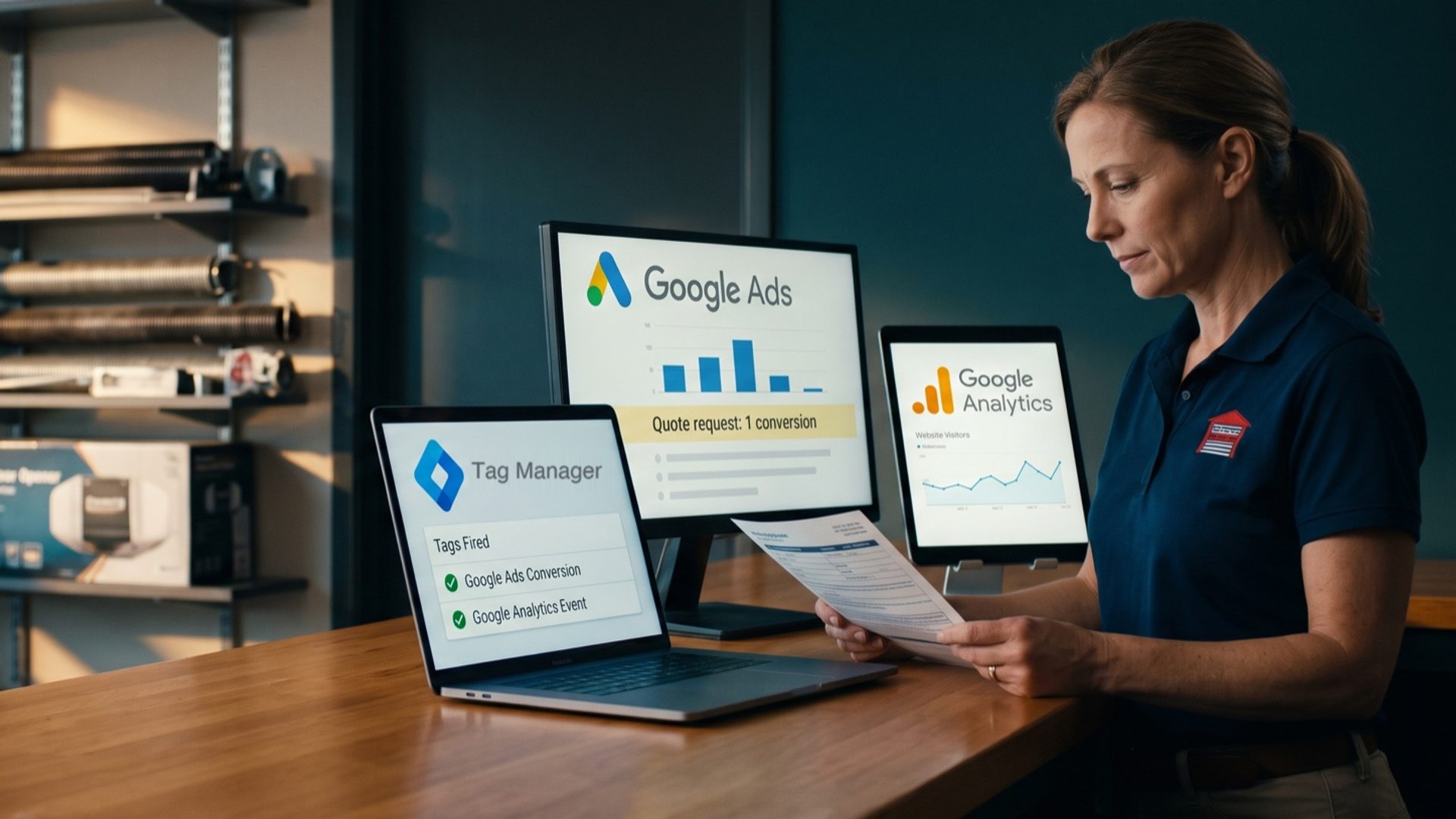
Say you own a garage door repair company and you're setting up Google Ads for the first time. Within an hour, three different Google products are asking to be installed on your website. Google Ads wants a tag. Google Analytics wants a tag. Somebody on YouTube tells you to put Google Tag Manager on the site first and run the other two through it. All three are free, all three have "Google" in the name, and none of the setup screens explains how they relate to each other.
So you ask the reasonable question: do I actually need all of them?
Yes. We run all three on almost every account we manage. But they are not three versions of the same thing, and treating them that way is how owners end up with bidding that learns from the wrong number. Each tool has one job. Tag Manager decides when tags fire. Google Ads counts the leads your bidding learns from. Google Analytics counts everything that happens on your website, from every source, and gives you a second opinion on the first two. Once you know which tool does which job, almost every "why don't my numbers match" question answers itself.
Tag Manager Doesn't Count Anything. It Decides When Your Tags Fire.
Start with the one that confuses people most, because it does the least on its own.
Google Tag Manager is a container. You (or your web developer) install one small piece of code on every page of your site, once. After that, every other tracking code lives inside the container instead of inside your website's code. Tag Manager calls those codes tags, and each tag gets a trigger: the rule for when it should fire.
A typical setup for a service business looks like this. Someone fills out your quote form. The form sends them to a page that says "Thanks, we'll call you within the hour." That thank-you page loads. A trigger in Tag Manager is watching for that page, and when it loads, it fires the Google Ads conversion tag. One lead recorded.
Notice what Tag Manager did and didn't do there. It didn't count the lead. It didn't store it, report it or decide whether it was worth anything. It noticed the page load and handed the event to Google Ads. Tag Manager is the delivery driver, not the warehouse.
That's also why the most widely watched Tag Manager tutorials on YouTube pitch it as a time saver: once the container is on the site, a marketer can add or change tracking codes without waiting days for a developer. That is the real benefit, and it's why we use it. When a client changes their form, adds a booking tool or moves the thank-you page, we update one trigger in Tag Manager instead of filing a ticket with their web developer.
Two details matter if you use it for Google Ads:
- The conversion linker tag. When someone clicks your ad, Google adds a click ID to the address of the page they land on. Tag Manager's conversion linker tag reads that ID and stores it in a cookie on your own domain, so that when the same person reaches the thank-you page later, the conversion can be tied back to the ad click. Google recommends firing it on all pages. Newer containers that already load a Google tag on every page handle this for you, but if you're not sure yours does, add it. It costs nothing, and a conversion that can't be matched to a click never reaches your bidding.
- Tag Manager is optional for Google Ads. Google's own help page lists two ways to track website conversions: put the Google tag directly on the site, or use Tag Manager. Both work. Tag Manager earns its place once you have more than one or two tags, or no developer on call. For most small businesses that's true by the end of the first month.
Google Ads Counts the Conversion. Smart Bidding Learns From Nothing Else.
The conversion itself lives in Google Ads. You create a conversion action there ("Quote form submitted," "Booked a service call"), Google gives you a tag for it, and that tag is what Tag Manager fires on the thank-you page.
What makes this the important count is what Google Ads does with it. If your campaign uses Smart Bidding (Maximize Conversions, Target CPA and the rest), the bidding system decides how much to pay for each search based on how likely it is to produce one of those conversions. The conversions are the only feedback it gets. We've called conversion tracking food for the algorithm before, and it's the most accurate way to say it: the system eats whatever you count and goes looking for more of it.
That's why the most important setting on a conversion action isn't the tag at all. It's whether the action is primary or secondary. Google's help page puts it plainly: the Conversions column in Google Ads shows conversions "only for actions set as 'Primary'." Primary actions are the ones your bidding optimizes toward. Secondary actions are recorded and visible under All conversions, but bidding ignores them. A garage door company might keep "Clicked the phone number" as secondary, so it can be watched, while "Quote form submitted" and "Call lasting 30 seconds or more" are primary.
Google Ads can also count something neither of the other tools can see: phone calls. When someone taps the call button on your ad, the call happens without a website visit at all. Google Ads counts those through its own call tracking, and it can count calls from the number on your website too, using a Google forwarding number. For a service business that gets half its leads by phone, this alone is reason the Google Ads count has to be the one bidding uses. Google Analytics never saw those calls happen.
Analytics Counts Every Visitor. Google Ads Only Tracks Its Own Ad Clicks.
Google Analytics answers a different question. Google Ads asks "which of my ad clicks turned into a lead?" Analytics asks "what happened on my website, from every source?" Organic search, Facebook, email, people typing your address in from the side of your truck, and Google Ads. Google's own comparison says Analytics "can include conversions from non-Google Ads sources," while Google Ads measures "conversions only from Google Ads sources."
That difference in purpose means the two tools will almost never agree, even when both are set up perfectly. Google's help page lists the reasons, and every one of them is a design choice, not a malfunction:
- Different dates. Google Ads records a conversion on the date of the ad click. Analytics records it on the date it happened. A Monday click that becomes a Tuesday form fill lands on Monday in one report and Tuesday in the other.
- Different counting. Google Ads lets you count one conversion per click or every conversion. If one person sends two quote requests, Analytics may show two and Google Ads one.
- Different memory. Google Ads cookies expire 90 days after the click. Analytics uses a cookie that can last up to 2 years.
- Different filters. Google Ads strips out conversions from clicks its invalid-traffic systems flagged. Analytics doesn't.
- Different credit. Google Ads, by default, spreads credit across the ad clicks that led to the conversion, which is how an account ends up reporting 2.37 conversions. Analytics looks across every channel that touched the visit. We worked through a full example of this in GA4 Says 40 Conversions. Google Ads Says 61. Both Are Right.
You can import an Analytics event into Google Ads and use it as a conversion. Google allows it, and sometimes it's the right call. But Google's own page adds two cautions worth knowing before you do. Imported data can arrive up to 24 hours after the conversion happened, which is a day of bidding on stale information. And conversions you create from the Analytics side "will be set as secondary," so they won't feed bidding until someone changes them in Google Ads. We see accounts where an owner set up the import, assumed it was working, and the campaign was never optimizing toward it.
We Checked 20 Accounts. Four in Five Website Conversions Came Through the Google Ads Tag.
Before writing this, we pulled the conversion setup for every Google Ads account we manage that spent money in the last 30 days. There are 20. We looked at what fed the Conversions column, the number bidding learns from, over the 90 days from August 19 to November 16.
Here is what we found:
- 17 of the 20 count website leads or sales with the Google Ads tag, whether that's a form, a purchase or a call from the site.
- 12 of the 20 count calls from the ads themselves, which only Google Ads can see.
- 8 of the 20 also count at least one event imported from Google Analytics.
- 2 of the 20 count website conversions only through Analytics.
Two of the accounts are online stores whose purchases are recorded by their store platform's Google app, which places the Google Ads tag for them. Those purchases ran into the thousands and would swamp everything else, so set them aside. Of the 1,502 other website conversions in those 90 days, 1,197 came through the Google Ads tag and 305 came through Analytics imports. That's about four in five.
The Tag Manager side tells the same story. Of the 59 Tag Manager containers we can see, current and past clients together, 32 fire Google Ads conversion tags, 102 tags between them. 27 of those 32 also run Google Analytics. And nearly half of the triggers on those conversion tags are page loads, the method that fires a tag when a thank-you page appears.
So the honest answer from our own accounts: Tag Manager is how the tag gets there, Google Ads is the count bidding uses, and Analytics sits next to both as the check. Imports from Analytics fill gaps. They aren't the foundation.
An Analytics Import Catches the Conversions the Google Ads Tag Misses. It Still Shouldn't Be Your Main Count.
There are good reasons to use an Analytics import, and they all come down to the same thing: the action happens somewhere the Google Ads tag can't reach.
- A booking tool or form you can't tag. Some scheduling widgets and website builders don't let you add a thank-you page or a custom trigger, but they do report the booking to Analytics. An import is a fair way to count it.
- A platform that already reports purchases to Analytics. Some ecommerce setups send clean purchase data to Analytics with order values attached. Importing it can be simpler than building a second purchase tag.
- A short-term bridge. When a site is being rebuilt and the thank-you page doesn't exist yet, an imported event keeps bidding fed until the tag can go back in.
And there are three mistakes we see often enough to name.
Counting the same lead twice. If the quote form fires a Google Ads tag and the same form submission is also imported from Analytics, and both are primary, every lead counts as two. The campaign looks twice as good as it is, and bidding pays for searches as if each one produced double the business. Pick one count per action. Keep the other as secondary, or remove it.
Making a browsing event primary. Analytics records a lot of things that feel like interest: page views, scrolls, video plays, clicks on a menu. Import one of those as a primary conversion and bidding will go find people who scroll and watch videos, because that's what you told it to count. Those people are cheap and plentiful. They don't call you.
Assuming the import is on. Because conversions created from the Analytics side arrive as secondary, an import can look finished in Analytics while Google Ads is ignoring it. Open the conversion summary in Google Ads and check the Optimization column for every action you think bidding is using.
If you're unsure whether your account is counting what it should, the companion guide to work through is No Conversions on Google Ads? Diagnose It Before You Blame Google, which starts with proving the counting works before touching anything else.
Tag Manager Goes In First Because Every Other Tag Lives Inside It
If you're starting from scratch, the order matters, because each tool depends on the one before it.
1. Install Tag Manager on every page. One container, installed once. Add the conversion linker tag and set it to fire on all pages.
2. Create your Google Ads conversions, then fire them from Tag Manager. Decide what a real lead is before you build anything: a submitted quote form, a booked appointment, a call of 30 seconds or more. Create one conversion action for each, mark the ones that represent real business as primary, and add the Google Ads conversion tag in Tag Manager with a trigger on the matching thank-you page. Turn on call tracking for calls from your ads and from your website.
3. Add Google Analytics through Tag Manager and link it to Google Ads. Analytics goes in the same container. Link the two accounts so you can see Google Ads clicks inside Analytics. Leave the Analytics events secondary in Google Ads unless one fills a gap the tag can't.
4. Test before you spend. Tag Manager's preview mode and Google's Tag Assistant show you which tags fire on which pages. Submit your own form, land on the thank-you page, and confirm the Google Ads conversion tag fired once. Then check that the test lead shows up in Google Ads within a few hours.
5. Compare the counts every month, with the right expectations. Put your Google Ads conversions next to the leads you actually received from your inbox, call log or CRM. That's the comparison that matters. Analytics will differ from both for the reasons above, and a steady gap is normal. A gap that suddenly widens is a broken tag, and if one goes unnoticed for long it costs more than the missing data. We walked through that cost in Your Google Ads Tracking Broke for a Week. Smart Bidding Learned From Every Day of It.
One more thing while you're building the thank-you page: make sure it doesn't put the customer's name or email in the page address. Many form tools do this by default, and every tag on the page reads the full address. We explained why that breaks Google's rules in Your Thank-You Page Puts the Customer's Email in the URL.
Tag Manager and Analytics Cost Nothing. The Conversion You Mark Primary Decides Where Your Ad Spend Goes.
None of these tools costs anything to install. The cost shows up later, in what your bidding learns. An account with Tag Manager, Google Ads conversions and Analytics all in place, but with the wrong action marked primary, will spend your budget efficiently on the wrong thing.
So set them up in order, give each one its job, and decide on purpose which number your bidding gets to eat. If you want someone to check your setup, this is the first thing our Google Ads management team looks at in every account we take on. If you'd rather do it yourself, everything above is the checklist we use.